
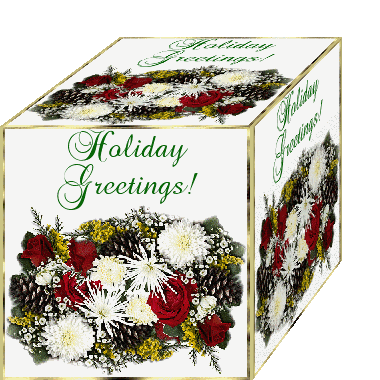
Making a "Pandora's Box" from a cube.
To make things easier & save time shuffling back & forth between imaging sites, make all your peices first & save them in one specially marked folder - number them numerically. Remember to "Smart Crop" all images before saving at Gifworks & transloading to your files.
Here are the "peices" for the box - click each link to see what they look like: #1 #2 #3 #3a #4 #4a #5 #6
Take the image to Gifworks & click "Open File", then input your image, click on "Effects" & choose "Cube" (this one is sized 247x253 - any numbers I use relate to this image, if you use a different size the numbers will change). Save this image as #2.gif
Take #2 back to gifworks & crop around the slanted top & save it with the partial side wedge on it - this will be #3.
Take #3 back to gifworks & click rotate "custom" & fill the text box in with 45. Crop off the slanted top, leaving the partial image (the wedge), do NOT rotate this one. Smart crop it & save it for later - this is #3a.
Now input the url for your cube in the text box at Gifworks again & click "fetch". Crop around the slanted top, rotate it 45 degrees & crop off the wedge on the side, then rotate it -47 - this will be #4. Save it for later.
Now take # 4 back to gifworks, & flip it horizontally, then resize it to 300x93, smart crop it & save it for later as #4a (this will be the open lid on the cube).
Take #4to gifworks & resize it to 316x85, then save it & take it to Image Magick & composite the 500x500 white gif "IN" (not over)- this will be the "empty inside" for the box). Save it as # 5.
Go back to gifworks again & input #2, crop the front of the image to get "Holiday Greetings" from it. Now rotate that image 45 degrees & crop out the corner a bit, rotate it -45 degrees & save it as #6 (mine measured 143x72)
Putting it all together
You'll need a large blank gif to start sized 500x500. Here's one you can use: Blank Gif. I colored mine red because it was "eating" into the frame around the image when I was ready to transparify it at the end
Composite your cube #2 onto the 500x500 gif using Southwest +0+0 Composite your lid #4a using Northwest +40+66 Composite the blank white peice "IN" using Northewst +10+159
You can stop here & you'll have a "box" with an open lid & nothing inside; or you can composite some of the other peices you saved to make it look like it's not "empty" inside. (If you don't want to do this, you can composite anything else you want to make it look like there's something in the box, hanging out over the box, or whatever - it's your choice.
If you choose to finish it like mine, here are the rest of the steps:
Composite the partial wedge #3a using Northwest +44+191 & change the "rotate" at the bottom of the page to -47. Composite the" Holiday Greetings!" #6 using Northwest +134+172.
Here's the finished Pandora's Box
If it looks "dirty" or unclear, click "Enhance" & choose "Normalize" to clean it up a bit. Now transparentize the background - using the paint feature at the bottom of the page; choose matte, choose floodfill, change the fuzz to 9999 & for the fill color change the default white to transparent & click on the background. Output your box with the open lid, take it to gifworks & smart crop it. Save the file & transload it to your files.
I hope this was helpful. You can use any size image you want but the coordinates for compositing will change with each different image size - you'll have to keep hitting your back button & "fine tuning" until you get things where you want them.
Have fun & enjoy!
Reflected waves with Text


